

There is a very common mistake I see over and over again in GA4: campaigns that are indeed bringing in visitors, but in the reports they appear as if no one knows where they are coming from.
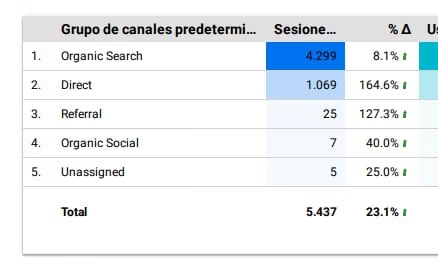
That hole has a name: unassigned traffic in Google Analytics 4.
And here's the real problem: when a portion of your traffic falls into “Unassigned”, your decisions are no longer supported by clean data. Then you may pause campaigns that do work, inflate the weight of “Direct”, or think your attribution is fine when it's actually broken.
In this article I am going to explain to you, in a simple way, what unallocated traffic means in GA4, why it happens, and what 6 best practices I use to minimize it. And at the end I will show you when it is worthwhile to lean on a technical partner as Analytic Pixel Pro to leave the tracking well done from the base.
What is unassigned traffic in Google Analytics 4
In GA4, traffic is classified into channels according to fixed rules. When Analytics cannot fit a visit into a recognized channel from the group of channels you are viewing, it marks it as a Unassigned. Google also indicates that this can happen when the source/medium does not fit into any rule or when session or identity information is missing and it appears (not set).
Easier said:
GA4 receives traffic, but does not have enough correct context to know if that was Paid Search, Email, Organic Social, Referral or another channel.
Why unallocated traffic is a serious problem
It's not just an ugly label on a report.
When you have a lot of unassigned traffic:
- you lose clarity about which channel generates sessions and conversions;
- attribution becomes less reliable;
- campaign ROI can be miscalculated;
- your dashboards stop telling the real story;
- optimizing the budget becomes more risky.
If you invest in Google Ads, Meta Ads, email, affiliation or performance in general, this problem can make you make wrong decisions with total confidence. And that can be costly.
What usually causes “Unassigned” in GA4
The most common causes I see are these.
1. Incorrect or incomplete UTMs
Google explains that (not set) may appear when manually tagged URLs have incomplete or incorrect parameters. If GA4 does not receive well the information needed to identify the origin, it cannot classify it well. (Google Help)
Typical examples:
utm_medium=paid-socialinstead of a value that fits well with your rules;utm_sourcewithoututm_medium;- errors in capitalization, hyphens or different names between campaigns;
- untagged links in emails, WhatsApp, partners or banners.
2. The session_start does not fire properly
Google indicates that the sizing of Session source / medium can come out as (not set) when the automatic event is missing session_start, for example if the GA4 configuration does not load with the correct trigger in GTM.
This is more common than it seems when:
- GA4 tag fires late;
- the container is poorly sorted;
- there are conflicts between scripts;
- the site has a mixed and not very clean implementation.
3. Incorrect label order
Google recommends initializing the Google tag before sending events. It also warns that, if you use server-side tagging, you should not maintain both a server-side and a separate client-side implementation for the same property if both are sending data inconsistently.
When order fails, attribution breaks down before it begins.
4. Google Ads accounts not linked or poorly resolved autotagging
Google notes that traffic from unlinked Google Ads accounts may appear as (not set) in certain reports. He also explains that, for more accurate ad attribution, the link between Google Ads and GA4 is key.
5. Source / medium that does not fit with the channel rules
Google makes it clear that the default channel groups follow fixed definitions and cannot be edited. You can create custom channel groups, but the default group has its own rules.
That means that, even if you understand a traffic as “social” or “paid”, GA4 may not see it that way if the nomenclature doesn't fit.
6. Consent, redirection or advanced implementation issues
Google also mentions Consent Mode errors among the causes that can lead to (not set).
In practice, moreover, I usually find more noise when there is:
- Poorly integrated CMP;
- subdomains or gateways that break the session;
- redirections between domains;
- hybrid web + server-side implementation with no clear governance;
- pixels and duplicate events.

How to detect where unallocated traffic is coming from
Before fixing anything, I would do this:
See “Session default channel group” next to “Session source / medium”.”
This helps you answer a basic question:
Is the problem that GA4 does not classify the channel, or is it that the source/medium is not well informed?
Google explains that the source and medium are the base pieces of attribution, and that the default channel group is built from this data.
Check if it appears (not set)
If you see a lot of (not set), If you are not sure, you already have an important clue: the failure is not only of “grouping”, but also of session data capture.
Segment by landing page, campaign and device
This way you will be able to detect if the problem comes from:
- specific campaigns;
- a specific landing page;
- mobile versus desktop;
- traffic from email, paid social or affiliates;
- routes with redirects or consent banners.
Checks DebugView, GTM and loading order
Here you often discover everything: tags that fire late, duplicate events, UTMs that get lost, consent that arrives later, or source/medium that is never properly fixed.
6 best practices to solve unallocated traffic in GA4
Here is the important part. These are the practices that work best for me.
1. Create a strict convention of UTMs and stick to it.
This is the first defense.
If everyone on the team labels campaigns in their own way, chaos will ensue. I recommend defining a simple document with fixed rules for:
utm_sourceutm_mediumutm_campaign
And always respect it.
For example:
google / cpcmeta / paid_socialnewsletter / emailpartnername / referral
The important thing is not to invent pretty names.
The important thing is that they are consistent, readable, and compatible with how GA4 classifies traffic. Google indicates that the medium categorizes the type of traffic and gives examples such as organic, cpc, referral, social y email.
My advice: don't leave UTMs to the discretion of each campaign. Make a template and close it.
Common error
Use different values for the same thing:
PaidSocialpaid-socialpaidsocialsocial_paid
This destroys consistency and complicates channel reading.
2. Make the GA4 base tag load before the events.
Google recommends initializing the Google tag before calling any event. It also documents that, in GTM, a cause of (not set) may be not to use the Initialization for configuration.
I always check this:
- the Google tag or GA4 configuration to load as soon as possible;
- that the
session_startcan be generated correctly; - that there are no events firing before the base;
- that there are no old labels interfering.
It seems silly, but a lot of “Unassigned” is fixed here.
3. Review the linkage with Google Ads and auto-tagging.
Google explains that ad attribution improves when Google Ads is linked to GA4, and that auto-tagging provides information that GA4 uses to enrich traffic dimensions.
I always check:
- that the correct Google Ads account is linked;
- that there are not several accounts advertising the website without a link;
- that auto-tagging is active;
- that the
gcliddo not get lost in redirects.
If something goes wrong here, some of the paid traffic may end up misattributed or directly into (not set).
4. Audit redirects, subdomains and session-breaking gateways.
This point is largely ignored.
A campaign can be perfectly tagged, but if the user goes through a strange redirect, a subdomain, an external login or a gateway, that information can get lost along the way.
I especially review:
- jumps between
www, subdomains and main domain; - shorteners or intermediate links;
- external checkout or payment tools;
- consent systems that are charged too late;
- environments where URL parameters change.
Here the problem is not always in the campaign. Sometimes it is in the technical architecture.
5. Do not mix uncontrolled implementations: web, GTM, server-side and pixels.
Google recommends not to keep a server-side and a client-side implementation independent by sending data to the same property out of order.
This is exactly what happens in many companies that have grown fast:
- part of the tracking is in the code;
- another part is in GTM;
- another in sGTM;
- Meta CAPI goes one way;
- GA4 goes for another one.
The result is usually a mixture of:
- duplicate events;
- split sessions;
- unstable attribution;
- data difficult to reconcile.
My approach here is simple:
a clear, documented and governed architecture.
6. Validate consent, privacy and capture of parameters from the beginning.
Google includes Consent Mode errors among the common causes of (not set).
And this makes a lot of sense: if consent comes in late or poorly, the session may start without the necessary information.
I would review:
- when the consent is launched;
- what happens before accepting it;
- if the campaign parameters are correctly maintained;
- whether the measurement complies with GDPR without breaking attribution;
- if server-side and consent are coordinated.
This is one of the most important keys for brands that invest heavily in performance:
measure more and better, without skipping privacy and compliance.
What not to do if I want to fix unallocated traffic in GA4
There are three errors that I see a lot:
Thinking that everything can be fixed by creating a customized channel
Sometimes it helps to analyze better, but if the source/medium or the session arrives wrong, the real problem is still there.
Look only at the Acquisition report
The report gives clues, but the fix is in the implementation: GTM, GA4, consent, redirects, UTMs and tracking architecture.
Touching things without a prior audit
Changing labels “by eye” can make the problem worse and create a new one.
My quick checklist to reduce “Unassigned”.”
If I want to detect the fault quickly, I follow this order:
- I review
Session source / medium; - I am looking for
(not set); - valid real UTMs in active campaigns;
- I check if
session_startis collected well; - I check the loading order in GTM;
- I verify link with Google Ads;
- I analyze redirects, subdomains and consent;
- I check for unordered mixing between client-side and server-side.
With this, I almost always find the source of the problem.
When does it make sense to ask Analytic Pixel Pro for help?
If your business invests in acquisition and depends on performance decisions, I wouldn't leave this issue at “we'll look into it”.
It makes sense to use Analytic Pixel Pro when:
- you see too much unassigned traffic in Google Analytics 4;
- your campaigns do not match your actual results;
- you have questions about GA4, GTM, pixels or Conversion API;
- you use multiple platforms and don't rely entirely on attribution;
- you need a solid technical implementation that is ready to scale;
- you want to measure better without losing sight of GDPR and consent.
The value here is not just “fixing a report”.
What is valuable is leave the tracking error-proofed so that you can invest with confidence.
Conclusion
The unassigned traffic in Google Analytics 4 does not appear just for the sake of it. It is usually a sign that something is wrong in one of these layers: tagging, session capture, loading order, ad integration, tracking architecture or consent.
The good news is that it can be greatly reduced.
The 6 practices that have the greatest impact are:
- standardize UTMs;
- load the GA4 base label well;
- review Google Ads and auto-tagging;
- audit redirects and subdomains;
- sort the architecture between client-side and server-side;
- validate consent and privacy from the start.
And if you want to solve it right from the start, with a solid technical base and ready to grow, I recommend this service from implementation of web and app analytics of Analytic Pixel Pro